Clipou: Clipboard History Manager
Manage all your Clipps in one app
Clipou: Clipboard History Managerとは何ですか?
Clipou: Clipboard History ManagerはExtensions And Coによって開発されたChromeの拡張機能で、その主な機能は「Manage all your Clipps in one app」です。
拡張機能のスクリーンショット
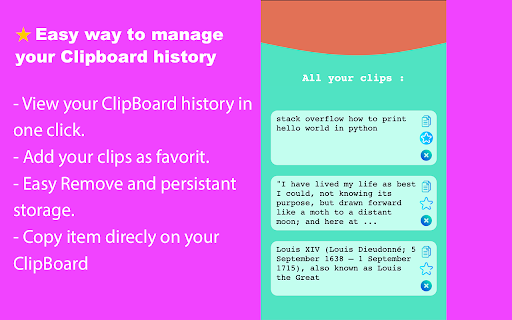
Clipou: Clipboard History Manager拡張機能のCRXファイルをダウンロード
Clipou: Clipboard History Manager拡張子のファイルをcrx形式でダウンロードし、ブラウザにChrome拡張機能を手動でインストールするか、crxファイルを友達と共有して簡単にChrome拡張機能をインストールします。
拡張機能の使用方法
                        Quickly manage and list copied text.

Clipou will store the text you've copied across the web and allow you to manage it easily.

Features :

- Manage your ClipBoard history.
- Add Clips by Ctrl + C or Click and Copy
- Add your Clips as favorits.
- Delete your Clips.

Notes :
- Clipou will ignore copied text from password fields.
- You Must reopen Chrome after installation.
拡張機能の基本情報
| 名前 |  Clipou: Clipboard History Manager Clipou: Clipboard History Manager |
| ID | npfghbanedhpdmbnnbiacklepppgfbid |
| 公式URL | https://chromewebstore.google.com/detail/clipou-clipboard-history/npfghbanedhpdmbnnbiacklepppgfbid |
| 説明 | Manage all your Clipps in one app |
| ファイルサイズ | 104 KB |
| インストール数 | 31 |
| 現在のバージョン | 1.0.0 |
| 最終更新日 | 2022-10-24 |
| 公開日 | 2022-10-23 |
| 評価 | 5.00/5 合計 1 レビュー |
| 開発者 | Extensions And Co |
| Eメール | [email protected] |
| 支払い方法 | free |
| 対応言語 | en |
| manifest.json | |
{
    "update_url": "https:\/\/clients2.google.com\/service\/update2\/crx",
    "name": "__MSG_ext_name__",
    "description": "__MSG_ext_description__",
    "version": "1.0.0",
    "manifest_version": 3,
    "default_locale": "en",
    "icons": {
        "16": "images\/icon16.png",
        "24": "images\/icon24.png",
        "32": "images\/icon32.png",
        "48": "images\/icon48.png",
        "128": "images\/icon128.png"
    },
    "permissions": [
        "storage",
        "unlimitedStorage",
        "contextMenus"
    ],
    "background": {
        "service_worker": "background.js",
        "type": "module"
    },
    "content_scripts": [
        {
            "matches": [
                "http:\/\/*\/*",
                "https:\/\/*\/*"
            ],
            "js": [
                "js\/content-script.js"
            ]
        }
    ],
    "action": {
        "default_title": "__MSG_ext_name__",
        "default_popup": "html\/popup.html"
    },
    "commands": {
        "_execute_action": {
            "suggested_key": {
                "default": "Ctrl+Shift+P",
                "mac": "Command+Shift+P"
            }
        }
    }
} | |