Quizizz Rocks
Automatically gets the answers for Quizizz games and opens them in a new tab
Quizizz Rocks란 무엇입니까?
Quizizz Rocks은(는) http://quizizz.rocks에 의해 개발된 Chrome 확장 프로그램으로, 주요 기능은 "Automatically gets the answers for Quizizz games and opens them in a new tab"입니다.
확장 프로그램 스크린샷
Quizizz Rocks 확장 프로그램 CRX 파일 다운로드
크롬 확장 프로그램을 crx 형식으로 다운로드하여 브라우저에 수동으로 설치하거나 crx 파일을 친구들과 공유하여 쉽게 크롬 확장 프로그램을 설치하세요.
확장 프로그램 사용 설명서
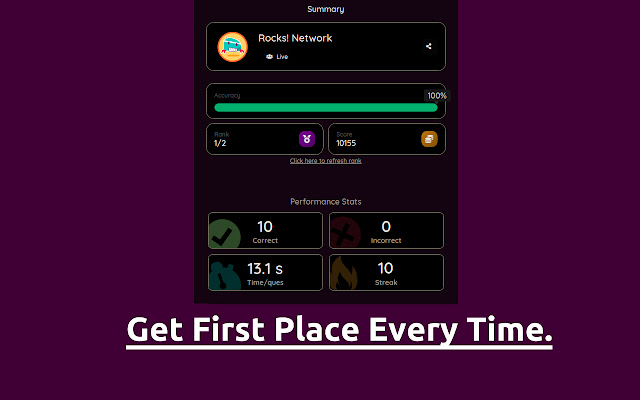
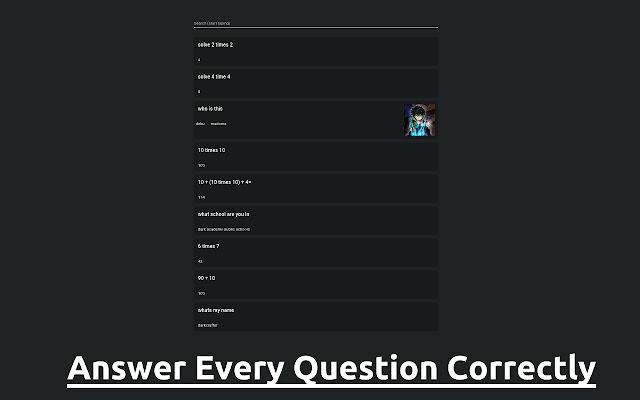
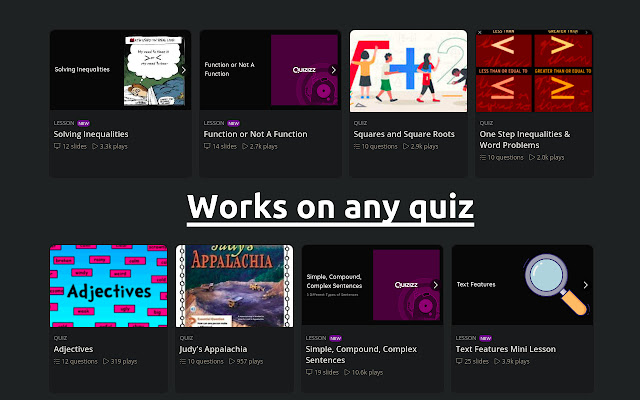
                        Rocks Network presents: The official Quizizz Rocks answer explorer. Just have this chrome extension installed, and when you join a quiz, just click the icon to get the answers in a nicely formatted UI. It works for any Quizizz game, whether that be a Quiz/Homework/Test. If any problems arise you can contact our very active support team at https://rocks.network/discord or through email at [email protected]. Similar cheat also accessible via game pin at https://quizizz.rocks/.

Quizizz is a creativity software company used in class, group works, pre-test review, exams, unit test, and impromptu tests. It allows students and teachers to be online at the same time. It uses a quiz-style teaching and learning method where a user answers questions in a series independently, and contends with other users on the same quiz.
확장 프로그램 기본 정보
| 이름 |  Quizizz Rocks Quizizz Rocks |
| ID | kmmibboliipddkiknfpkfnhblinocgog |
| 공식 URL | https://chrome.google.com/webstore/detail/quizizz-rocks/kmmibboliipddkiknfpkfnhblinocgog |
| 설명 | Automatically gets the answers for Quizizz games and opens them in a new tab |
| 파일 크기 | 13.53 KB |
| 설치 횟수 | 100,000 |
| 현재 버전 | 2.0.0 |
| 최근 업데이트 | 2021-05-23 |
| 출시 날짜 | 2021-02-19 |
| 평점 | 3.33/5 총 169 개의 평점 |
| 개발자 | http://quizizz.rocks |
| 이메일 | [email protected] |
| 결제 유형 | free |
| 도움말 페이지 URL | https://rocks.network/discord |
| 지원되는 언어 | en |
| manifest.json | |
{
    "update_url": "https:\/\/clients2.google.com\/service\/update2\/crx",
    "name": "Quizizz Rocks",
    "version": "2.0.0",
    "manifest_version": 2,
    "description": "Automatically gets the answers for Quizizz games and opens them in a new tab",
    "icons": {
        "16": "images\/16.png",
        "48": "images\/48.png",
        "128": "images\/128.png"
    },
    "background": {
        "scripts": [
            "background.js"
        ]
    },
    "permissions": [
        "activeTab"
    ],
    "browser_action": {
        "default_icon": "images\/16.png"
    }
} | |