URLocker
URLocker can be used to password protect a specific URL. Many times you have to willingly or unwillingly share your laptop with…
Co to jest URLocker?
URLocker to rozszerzenie Chrome opracowane przez Aman Raj, a jego główną funkcją jest „URLocker can be used to password protect a specific URL. Many times you have to willingly or unwillingly share your laptop with…”.
Zrzuty ekranu rozszerzenia

Pobierz plik CRX rozszerzenia URLocker
Pobierz pliki rozszerzeń URLocker w formacie crx, zainstaluj ręcznie rozszerzenia Chrome w przeglądarce lub udostępnij pliki crx znajomym, aby łatwo zainstalować rozszerzenia Chrome.
Instrukcja Użytkowania Rozszerzenia
URLocker can be used to password protect a specific URL.
Many times you have to willingly or unwillingly share your laptop with some friend. And your friend will have all the access to your logged in websites. This can be prevented
Unlocking persists among websites, i.e if you have unlocked a website, then all the other locked websites are also unlocked.
WorkFlow:
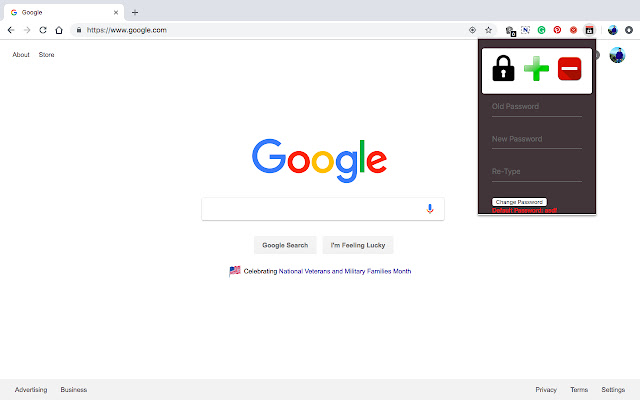
Add Button: Adding a website to password protected list
1. Open the website which you want to password protect
2. Once the website loading is complete, open the extension menu by clicking the
extension icon on the browser
3. Click on the green “+” button in the menu
4. If you reload the website, you will be asked for the password if you have not entered the
password for any other website or if you have used lockall option(explained later)
Remove Button: Removing a website from password protected list
1. Steps to remove a website are similar to adding except for the 3rd step, where instead of clicking the green “+” button, you need to click on the red “” (minus) button
2. From now on, you will not be asked to enter the password for this website
Lock Button: Locking the passwordprotected website after successful login
1. After you have entered the correct password and successfully accessed the website, you can access all the websites which you have added to the passwordprotected list earlier
2. Click on the lock button to reset the lock the websites again
Change Password: To change the password
1. Enter the old password. The default password is “asdf” (without quotes)
2. Enter new password
3. Reenter new password
4. Click on “change password” button. You will be shown a message for successful change
or if something went wrong Podstawowe informacje o rozszerzeniu
| Nazwa |  URLocker URLocker |
| ID | kllapfdedgneblamambjbbnecahlpdla |
| Oficjalny URL | https://chrome.google.com/webstore/detail/urlocker/kllapfdedgneblamambjbbnecahlpdla |
| Opis | URLocker can be used to password protect a specific URL. Many times you have to willingly or unwillingly share your laptop with… |
| Rozmiar pliku | 162 KB |
| Liczba instalacji | 222 |
| Aktualna Wersja | 0.1 |
| Ostatnia Aktualizacja | 2018-11-17 |
| Data Publikacji | 2018-11-14 |
| Ocena | 3.40/5 Łącznie 5 Oceny |
| Deweloper | Aman Raj |
| [email protected] | |
| Typ Płatności | free |
| Obsługiwane Języki | en |
| manifest.json | |
{
"update_url": "https:\/\/clients2.google.com\/service\/update2\/crx",
"manifest_version": 2,
"name": "URLocker",
"version": "0.1",
"content_scripts": [
{
"matches": [
" | |