cashX: Cash Back & Coupon Automation
2-in-1 service offers cash back and coupons while you shop.
cashX: Cash Back & Coupon Automationคืออะไร?
cashX: Cash Back & Coupon Automation เป็นส่วนขยายของ Chrome ที่พัฒนาโดย cashX และคุณลักษณะหลักของมันคือ "2-in-1 service offers cash back and coupons while you shop."
ภาพหน้าจอของส่วนขยาย





ดาวน์โหลดไฟล์ CRX ของส่วนขยาย cashX: Cash Back & Coupon Automation
ดาวน์โหลดไฟล์ส่วนขยาย cashX: Cash Back & Coupon Automation ในรูปแบบ crx และติดตั้งส่วนขยาย Chrome ด้วยตนเองในเบราว์เซอร์หรือแชร์ไฟล์ crx กับเพื่อนๆ เพื่อติดตั้งส่วนขยาย Chrome อย่างง่ายดาย
คำแนะนำในการใช้ส่วนขยาย
                        Some apps save you money, some earn you cash back. We do both. All you have to do is install our Chrome extension.

An easy, free tool to help you save money and earn cash back.

How does it work?
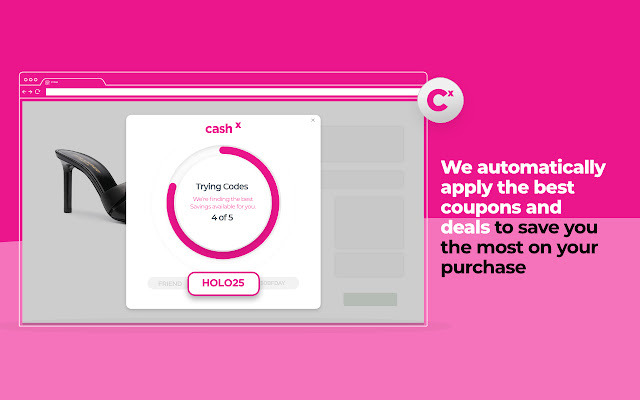
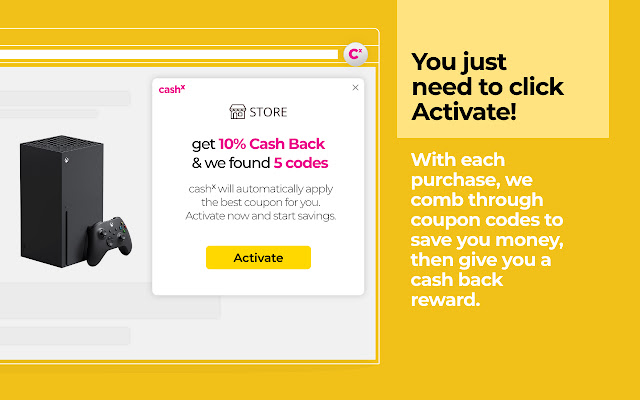
With each purchase, we comb through coupon codes to save you money, then give you a cash back reward. We automatically apply the best coupons and deals to save you the most on your purchase. Then we apply cash back earnings, whether you used a coupon or not.

No points system, no gimmicks, just cash back every month.

Shop. Save. Earn. We’ll do the rest.

By installing, you agree to our terms of service:
https://getcashx.com/terms-of-service
ข้อมูลพื้นฐานของส่วนขยาย
| ชื่อ |  cashX: Cash Back & Coupon Automation cashX: Cash Back & Coupon Automation |
| ID | fmpnhboalalnbinpmgjhohpicghimgke |
| URL อย่างเป็นทางการ | https://chrome.google.com/webstore/detail/cashx-cash-back-coupon-au/fmpnhboalalnbinpmgjhohpicghimgke |
| คำอธิบาย | 2-in-1 service offers cash back and coupons while you shop. |
| ขนาดไฟล์ | 9.43 MB |
| จำนวนการติดตั้ง | 825 |
| เวอร์ชันปัจจุบัน | 3.88 |
| อัปเดตครั้งล่าสุด | 2022-03-03 |
| วันที่เผยแพร่ | 2021-01-29 |
| คะแนน | 5.00/5 รวมทั้งหมด 7 คะแนน |
| ผู้พัฒนา | cashX |
| อีเมล | [email protected] |
| ประเภทการชำระเงิน | free |
| เว็บไซต์ส่วนขยาย | https://getcashx.com |
| URL หน้าช่วยเหลือ | https://getcashx.com/faq |
| URL หน้านโยบายความเป็นส่วนตัว | https://getcashx.com/terms-of-service |
| ภาษาที่รองรับ | en-US |
| manifest.json | |
{
    "update_url": "https:\/\/clients2.google.com\/service\/update2\/crx",
    "name": "__MSG_appTitle__",
    "version": "3.88",
    "description": "__MSG_appDesc__",
    "permissions": [
        "notifications",
        "activeTab",
        "tabs",
        "storage",
        "http:\/\/*\/*",
        "https:\/\/*\/*",
        "cookies",
        "*:\/\/*.google.com",
        "unlimitedStorage"
    ],
    "background": {
        "scripts": [
            "js\/env.js",
            "static\/js\/background.js",
            "js\/main.js"
        ],
        "persistent": false
    },
    "content_scripts": [
        {
            "matches": [
                "https:\/\/*\/*",
                "http:\/\/*\/*"
            ],
            "css": [
                "\/static\/css\/content.css"
            ],
            "js": [
                "\/static\/js\/content.js"
            ],
            "run_at": "document_end"
        }
    ],
    "default_locale": "en_US",
    "browser_action": {
        "default_title": "__MSG_appTitle__",
        "default_description": "__MSG_appDesc__",
        "default_popup": "popup.html?popup=true",
        "icon": {
            "16": "images\/icon.png",
            "32": "images\/icon.png",
            "48": "images\/icon.png",
            "128": "images\/icon.png"
        }
    },
    "icons": {
        "16": "images\/[email protected]",
        "32": "images\/[email protected]",
        "48": "images\/[email protected]",
        "128": "images\/[email protected]"
    },
    "content_security_policy": "script-src 'self' 'unsafe-eval'; object-src 'self'",
    "manifest_version": 2,
    "web_accessible_resources": [
        "fonts\/*.*",
        "static\/media\/*.*",
        "popup.html",
        "loader-google.html",
        "loader-facebook.html",
        "loader-paypal.html",
        "no-access.html"
    ],
    "commands": {
        "_execute_browser_action": {
            "suggested_key": {
                "windows": "Ctrl+Shift+Y",
                "mac": "Command+Shift+Y",
                "chromeos": "Ctrl+Shift+U",
                "linux": "Ctrl+Shift+H"
            }
        }
    }
} | |