eversign: eSign in Gmail, Drive & Google Docs
Sign documents right from Gmail, Google Docs, Google Drive, and from your Chrome Browser PDF Preview.
eversign: eSign in Gmail, Drive & Google Docsคืออะไร?
eversign: eSign in Gmail, Drive & Google Docs เป็นส่วนขยายของ Chrome ที่พัฒนาโดย https://eversign.com และคุณลักษณะหลักของมันคือ "Sign documents right from Gmail, Google Docs, Google Drive, and from your Chrome Browser PDF Preview."
ภาพหน้าจอของส่วนขยาย

ดาวน์โหลดไฟล์ CRX ของส่วนขยาย eversign: eSign in Gmail, Drive & Google Docs
ดาวน์โหลดไฟล์ส่วนขยาย eversign: eSign in Gmail, Drive & Google Docs ในรูปแบบ crx และติดตั้งส่วนขยาย Chrome ด้วยตนเองในเบราว์เซอร์หรือแชร์ไฟล์ crx กับเพื่อนๆ เพื่อติดตั้งส่วนขยาย Chrome อย่างง่ายดาย
คำแนะนำในการใช้ส่วนขยาย
                        eversign for Chrome allows you to place legally binding signatures on any document in Gmail, Google Drive, Google Docs, and sign documents right from your Chrome Browsers. You’ll never need to print, sign or scan a document again — just open a document file, place your signature and other dynamic fields, and let eversign do the rest. eversign ensures legally binding signatures and complies with worldwide e-Signature legality standards.

1. Sign from Gmail

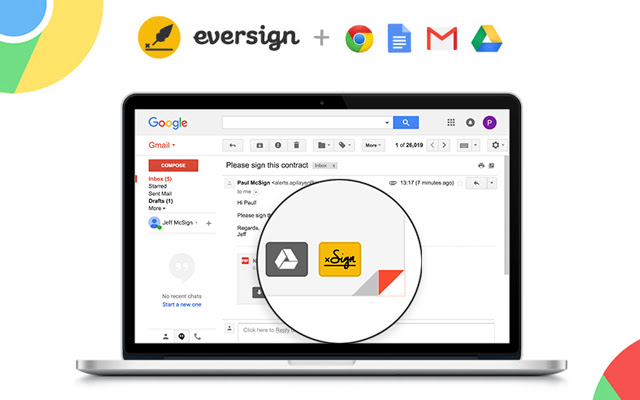
Just hover over an email attachment and click the new „Sign“ button in Gmail to immediately sign any document you receive without leaving your Gmail inbox. Once the document is signed, we’ll automatically attach it to your email’s draft response.

2. Sign from Google Docs

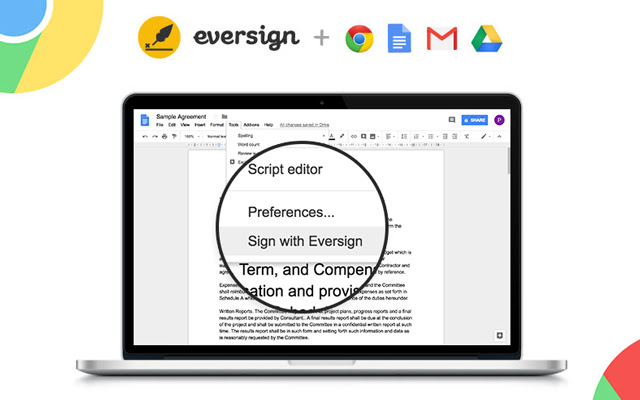
To sign a document right from Google Docs, just open the document, click „Tools“ in the top-options bar and select “Sign with eversign”. After signing you can download the document and we immediately archive it in your eversign account.

3. Sign from Google Drive

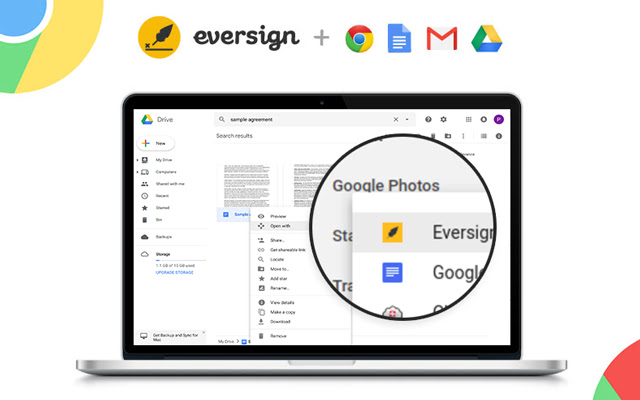
To sign a document right from Google Drive, simply right click on any File and choose „Open with eversign“. After signing you can download the final document and we immediately archive it in your eversign account.

4. Sign from Chrome Preview

Now you can sign PDF documents right from your Chrome Browser Preview Page. Simply click on the „Sign“ icon that appears in the lower right corner of your PDF Preview to sign any PDF document without leaving the page. After signing, you can download the document and we immediately archive it in your eversign account.

Want more information about eversign? Visit us at https://eversign.com
ข้อมูลพื้นฐานของส่วนขยาย
| ชื่อ |  eversign: eSign in Gmail, Drive & Google Docs eversign: eSign in Gmail, Drive & Google Docs |
| ID | hdlhmemcpdlkhkiglelebglchamjmhce |
| URL อย่างเป็นทางการ | https://chrome.google.com/webstore/detail/eversign-esign-in-gmail-d/hdlhmemcpdlkhkiglelebglchamjmhce |
| คำอธิบาย | Sign documents right from Gmail, Google Docs, Google Drive, and from your Chrome Browser PDF Preview. |
| ขนาดไฟล์ | 253 KB |
| จำนวนการติดตั้ง | 13,474 |
| เวอร์ชันปัจจุบัน | 1.1.11 |
| อัปเดตครั้งล่าสุด | 2021-05-27 |
| วันที่เผยแพร่ | 2020-06-24 |
| คะแนน | 3.44/5 รวมทั้งหมด 18 คะแนน |
| ผู้พัฒนา | https://eversign.com |
| อีเมล | [email protected] |
| ประเภทการชำระเงิน | free |
| เว็บไซต์ส่วนขยาย | https://eversign.com |
| URL หน้าช่วยเหลือ | https://eversign.com/help |
| URL หน้านโยบายความเป็นส่วนตัว | https://eversign.com/legal/privacy |
| ภาษาที่รองรับ | de,en,fr,nl,tr,da,es,it,pl,pt-PT,sv,ru,zh-CN |
| manifest.json | |
{
    "update_url": "https:\/\/clients2.google.com\/service\/update2\/crx",
    "name": "__MSG_name__",
    "description": "__MSG_description__",
    "default_locale": "en",
    "version": "1.1.11",
    "manifest_version": 2,
    "author": "",
    "key": "MIIBIjANBgkqhkiG9w0BAQEFAAOCAQ8AMIIBCgKCAQEAmUy0PlVAsDxDMfG4ioIokYOht64Ilg9nVLSN7JvcKLvZ1Ooy5IOlurXyeE8GC1LnyMf4Jqacykvua3ZPSqvw9NHmmUNbOQfuvx1tuZGbyENx1CLbLzQfIh108L1KB\/SRGms3XGZLA1Qg+lW9Nkd8n8cS0hYCVkzb6ucAjdwW4BExhuaQXf1gqycHdq43BfH8rs6tkVCgArmSjVqweopnm4tlMWWee5f+qFlXUu4cNOrtPV8sy0z+cqBTe72EbA2fZOx4VuWSfG55OQ\/oTlKBykQlPvRPjqDM7tlhNsZ9To\/YLTBrVGnwitNRdlMGZqPIwvVzOyXvxAFowBk78n8kJQIDAQAB",
    "icons": {
        "128": "\/img\/logo_rounded.png"
    },
    "browser_action": {
        "default_icon": "\/img\/logo_rounded.png",
        "default_popup": "\/pages\/popup\/index.html"
    },
    "background": {
        "scripts": [
            "\/lib\/jquery.min.js",
            "\/lib\/x.js",
            "\/js\/background\/background.js"
        ],
        "persistent": false
    },
    "content_scripts": [
        {
            "matches": [
                "https:\/\/mail.google.com\/*",
                "https:\/\/drive.google.com\/*",
                "https:\/\/docs.google.com\/*",
                "https:\/\/eversign.com\/*",
                "https:\/\/*.eversign.com\/*"
            ],
            "all_frames": true,
            "js": [
                "\/lib\/jquery.min.js",
                "\/lib\/moment.min.js",
                "\/lib\/URI.min.js",
                "\/lib\/x.js",
                "\/js\/converters\/main_converter.js",
                "\/js\/converters\/gmail_converter.js",
                "\/js\/converters\/google_docs_converter.js",
                "\/js\/converters\/google_drive_converter.js",
                "\/js\/components\/FileDataManager.js",
                "\/js\/components\/InjectedCodeManager.js",
                "\/js\/components\/WidgetManager.js",
                "\/js\/components\/ApiManager.js",
                "\/js\/components\/GoogleDocsMenuItemManager.js",
                "\/js\/components\/GoogleDriveContextmenuManager.js",
                "\/js\/components\/GmailButtonManager.js",
                "\/js\/components\/PdfButtonManager.js",
                "\/js\/components\/Controller.js",
                "\/js\/content_scripts\/main.js"
            ]
        }
    ],
    "permissions": [
        "storage",
        "https:\/\/mail.google.com\/*",
        "https:\/\/drive.google.com\/*",
        "https:\/\/docs.google.com\/*",
        "https:\/\/*.googleusercontent.com\/*",
        "https:\/\/eversign.com\/*",
        "https:\/\/*.eversign.com\/*"
    ],
    "web_accessible_resources": [
        "\/*"
    ]
} | |