Tab Stack
Quickly switch between recent tabs in the activated order, like ALT + TAB in Windows
Tab Stackคืออะไร?
Tab Stack เป็นส่วนขยายของ Chrome ที่พัฒนาโดย nemesisper และคุณลักษณะหลักของมันคือ "Quickly switch between recent tabs in the activated order, like ALT + TAB in Windows"
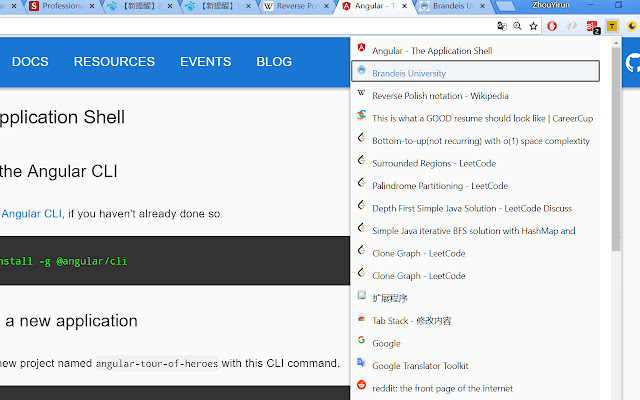
ภาพหน้าจอของส่วนขยาย
ดาวน์โหลดไฟล์ CRX ของส่วนขยาย Tab Stack
ดาวน์โหลดไฟล์ส่วนขยาย Tab Stack ในรูปแบบ crx และติดตั้งส่วนขยาย Chrome ด้วยตนเองในเบราว์เซอร์หรือแชร์ไฟล์ crx กับเพื่อนๆ เพื่อติดตั้งส่วนขยาย Chrome อย่างง่ายดาย
คำแนะนำในการใช้ส่วนขยาย
                        Mimic the function of Alt + Tab in Windows or Command + Tab in MacOS to manage tabs.

- Use Alt + 1 (Option + 1 in MacOS) to open the extension. The extension shows the tab list according to the order they activated. So you can easily switch between most recently activated tabs by using shortcuts.

- While you are selecting tab you want to jump to, keep Alt (Option) down.

- Up/ Down arrow to select tab in tab list, hit Enter or just release Alt (Option) to jump to the tab you selected.

- If you decide to stay in current tab, simply use Alt + 1 (Option + 1) to close the extension.

2018.07.11 - Add scrolling function of key Q and W, same as up/down arrow key.
ข้อมูลพื้นฐานของส่วนขยาย
| ชื่อ |  Tab Stack Tab Stack |
| ID | jipfnojdidlbelcajjonblnmmbcjnbpk |
| URL อย่างเป็นทางการ | https://chrome.google.com/webstore/detail/tab-stack/jipfnojdidlbelcajjonblnmmbcjnbpk |
| คำอธิบาย | Quickly switch between recent tabs in the activated order, like ALT + TAB in Windows |
| ขนาดไฟล์ | 429 KB |
| จำนวนการติดตั้ง | 36 |
| เวอร์ชันปัจจุบัน | 1.0 |
| อัปเดตครั้งล่าสุด | 2018-09-05 |
| วันที่เผยแพร่ | 2018-09-05 |
| คะแนน | 1.00/5 รวมทั้งหมด 2 คะแนน |
| ผู้พัฒนา | nemesisper |
| อีเมล | [email protected] |
| ประเภทการชำระเงิน | free |
| เว็บไซต์ส่วนขยาย | https://github.com/yirunzhou/Tab-Stack |
| ภาษาที่รองรับ | en |
| manifest.json | |
{
    "update_url": "https:\/\/clients2.google.com\/service\/update2\/crx",
    "name": "Tab Stack",
    "version": "1.0",
    "description": "Quickly switch between recent tabs in the activated order, like ALT + TAB in Windows",
    "manifest_version": 2,
    "permissions": [
        "activeTab",
        "tabs",
        "storage"
    ],
    "background": {
        "scripts": [
            "background.js"
        ]
    },
    "browser_action": {
        "default_popup": "popup.html",
        "default_icon": {
            "128": "images\/tab_stack_128.png"
        }
    },
    "commands": {
        "_execute_browser_action": {
            "suggested_key": {
                "default": "Alt+1"
            }
        }
    }
} | |